Setting up Microsoft 365 email essentials with your own domain, correct DNS records and proper authentication removes the credibility hurdle of free webmail and gives every message a professional edge.
Let us break down everything you need to know about setting up and maximizing your corporate email infrastructure.
What is Microsoft 365 Email Essentials?
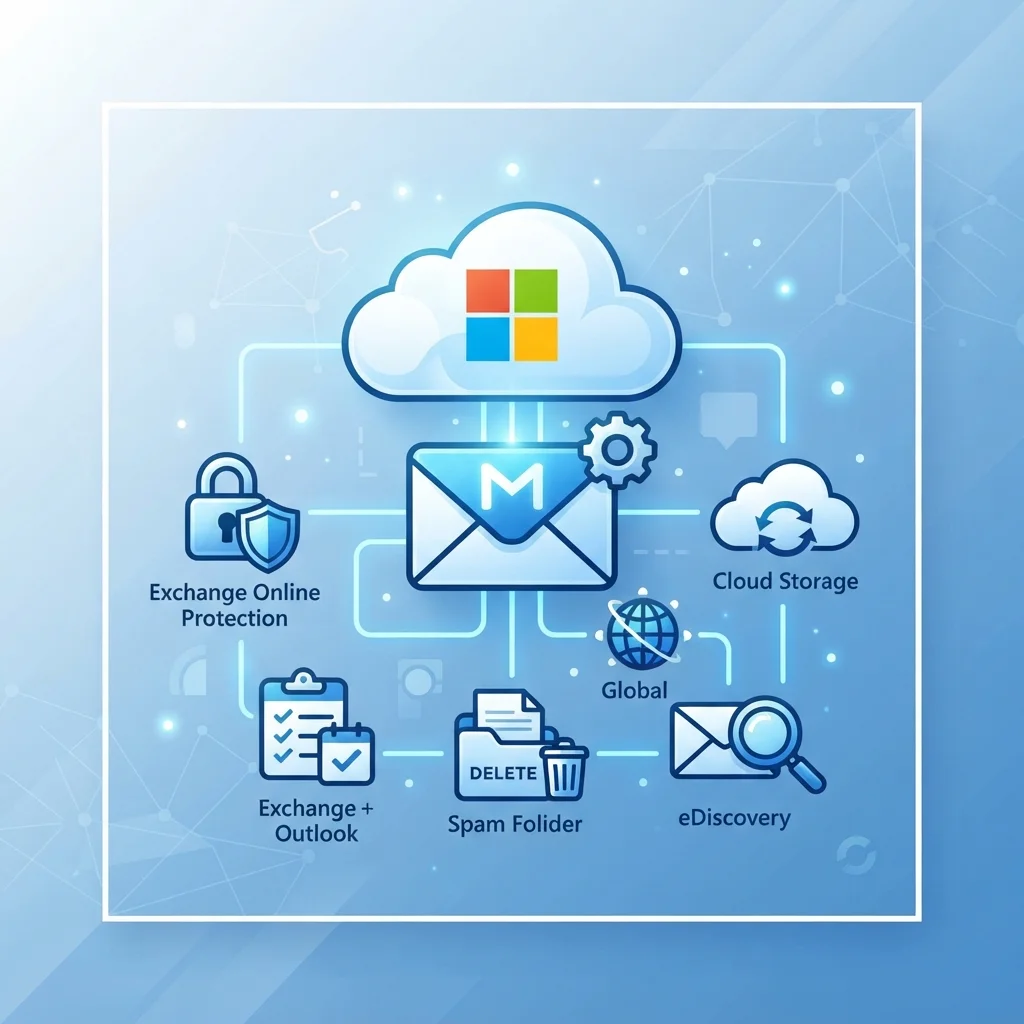
At its core, Microsoft 365 email essentials is the foundational software suite designed to deliver business-class email, calendar synchronization, and contact management powered by Microsoft Exchange Online. Rather than using standard, ad-supported consumer accounts, this environment provides dedicated infrastructure built to handle professional communication workloads.
Key features include:
- A dedicated business inbox featuring multi-device synchronization across Outlook for desktop, web, and mobile
- Integrated calendar and scheduling tools to manage appointments effortlessly
- Enterprise-grade protection against malware, phishing attempts, and unsolicited spam
- Custom domain mapping so your communications always match your web property
- Secure cloud-backed storage that ensures your message archive remains accessible anywhere
Modern digital communication relies heavily on open protocols and interoperable standards. Groups like the W3C help define the broader technical frameworks for web communications, and Microsoft 365 adopts these standards to deliver secure email delivery across platforms.
Why a Custom Domain Email is Vital for Business Growth
First impressions happen in fractions of a second. If your communication looks amateurish, you risk losing valuable partnerships and deals before a dialogue even begins.
Brand Ownership and Retention
When you rely on third-party freemail accounts, you do not own your address or your administrative data. If an employee departs, you risk losing client history and sensitive communications. With a custom business inbox, you maintain complete administrative custody of your digital assets.
Search Signals and Brand Identity
Search engines reward established, trustworthy business entities. As outlined in guidelines from Google Search Central, building brand authority across your digital touchpoints establishes clear entity signals that reinforce your reputation on the web. A uniform web and email presence under a single domain name confirms your brand identity.
Protection Against Spoofing
Cyber threats continue to evolve, with business email compromise and domain spoofing posing major risks to growing brands. Professional email setups implement identity verification frameworks that ensure fraudulent actors cannot impersonate your business.
Step-by-Step Technical Setup for Microsoft 365 Email Essentials
Setting up your inbox does not require an enterprise IT team, but it does require following a precise configuration sequence.
Step 1: Secure Your Foundation with a Domain
Before configuring your inbox, you need an active web address. You can look up available names and extensions using our fast domain search tool. Every registered domain name operates under policies supervised by ICANN, which guarantees global technical coordination and ownership rights.
Step 2: Establish Domain Ownership via DNS
Once you select your plan, Microsoft requires proof of domain ownership. You will log into your domain management console and create a verification TXT record. This entry proves to the mail servers that you hold legitimate administrative control over the domain.
Step 3: Configure Routing with MX Records
Mail Exchanger (MX records) function as digital routing instructions. They direct incoming internet mail traffic to Microsoft’s Exchange servers. Without proper MX entries, incoming messages cannot reach your Outlook inbox.
Step 4: Implement Email Authentication (SPF, DKIM, DMARC)
Authentication is what keeps your outbound mail out of spam folders and prevents attackers from spoofing your domain. Microsoft 365 and Google Workspace both require all three records for reliable delivery, and Google’s February 2024 sender guidelines mandate SPF and DKIM for bulk senders (5,000+ messages per day to Gmail), with DMARC at minimum p=none.
SPF — Authorized Sending Sources
An SPF TXT record lists the IP addresses and hostnames permitted to send mail for your domain. For Microsoft 365 the canonical record is:
v=spf1 include:spf.protection.outlook.com -all
The include:spf.protection.outlook.com mechanism delegates to Microsoft’s published IP ranges. The -all (hard fail) tells receivers to reject mail from any source not in the list; ~all (soft fail) is acceptable during testing. Only one SPF record per domain or subdomain is allowed — multiple records cause a permanent error. Keep the total DNS lookup chain under 10 lookups (each include:, a, mx or exists counts as one); exceeding the limit also produces a permerror. Microsoft’s SPF configuration guide and RFC 7208 provide the full specification.
DKIM — Cryptographic Message Signing
DKIM adds a domain-linked signature to every outbound message. Microsoft 365 uses CNAME records pointing to two selectors so keys can be rotated without downtime:
selector1._domainkey→selector1-._domainkey..-v1.dkim.mail.microsoftselector2._domainkey→selector2-._domainkey..-v1.dkim.mail.microsoft
Both CNAMEs must exist; the service rotates between them every 96 hours. Unlike some providers that use TXT records for DKIM, Microsoft 365 exclusively uses CNAME delegation. Microsoft’s DKIM configuration guide and RFC 6376 cover the details. (Google Workspace, by contrast, publishes the public key as a TXT record at google._domainkey.)
DMARC — Policy, Reporting and Alignment
DMARC tells receiving servers what to do when SPF or DKIM fail and requires alignment — the authenticated domain (SPF’s Return-Path or DKIM’s d= domain) must match the visible From: address. A starter record at _dmarc looks like:
v=DMARC1; p=none; pct=100; rua=mailto:[email protected]
p=none = monitor only; p=quarantine = mark as suspicious; p=reject = block outright. Use pct to roll out gradually (e.g., 10 → 50 → 100). rua receives daily aggregate reports; ruf receives forensic failure reports (Microsoft 365 does not send forensic reports). Subdomains inherit the parent policy unless they publish their own or you set sp=. Microsoft’s DMARC guide, Google’s DMARC setup, DMARC.org and RFC 7489 are the authoritative references.
Complete Microsoft 365 DNS Configuration Matrix
When mapping your custom domain to Microsoft 365 Email Essentials, enter the following authoritative DNS records within your domain manager or registrar control panel:
| Record Type | Host / Name | Value / Destination | Priority | TTL | Function |
|---|---|---|---|---|---|
MX |
@ |
[yourdomain-com].mail.protection.outlook.com |
0 |
3600 |
Primary inbound mail delivery |
CNAME |
autodiscover |
autodiscover.outlook.com |
– | 3600 |
Automatic Outlook & mobile profile sync |
TXT |
@ |
v=spf1 include:spf.protection.outlook.com -all |
– | 3600 |
SPF sender identity authorization |
CNAME |
selector1._domainkey |
selector1-[yourdomain-com]._domainkey.[tenant].onmicrosoft.com |
– | 3600 |
Primary DKIM cryptographic signature |
CNAME |
selector2._domainkey |
selector2-[yourdomain-com]._domainkey.[tenant].onmicrosoft.com |
– | 3600 |
Secondary DKIM key rotation |
TXT |
_dmarc |
v=DMARC1; p=quarantine; pct=100; rua=mailto:dmarc@[yourdomain.com] |
– | 3600 |
DMARC alignment policy & abuse reports |
Client Port & Protocol Reference for Devices
While modern desktop Outlook connects automatically via Autodiscover, mobile devices, custom SMTP relays, and legacy clients require exact ports and cryptographic transport flags:
| Service | Server Endpoint | Port | Encryption Method | Authentication |
|---|---|---|---|---|
| Inbound IMAP | outlook.office365.com |
993 |
SSL / TLS | OAuth2 (Modern Auth) |
| Inbound POP3 | outlook.office365.com |
995 |
SSL / TLS | OAuth2 (Modern Auth) |
| Outbound SMTP | smtp.office365.com |
587 |
STARTTLS | App Password / OAuth2 |
Choosing the Right Domain Extension
Your top-level domain (TLD) dictates how recipients perceive your brand before opening your message. Here is how leading choices compare:
- The Traditional Choice (.com): The undisputed benchmark for commercial credibility. Overseen by registry operators such as Verisign, the .com namespace carries worldwide familiarity and optimal deliverability scores.
- The Technology Standard (.io / .ai): Highly preferred among developer tools, tech startups, and artificial intelligence ventures looking to showcase modern capabilities.
- The Versatile Backup (.co / .net): Excellent alternatives if your preferred primary name is unavailable, offering strong recognition and brand flexibility.
Streamlining Your Setup and Domain Maintenance
Managing multiple providers for domains, security, and messaging can lead to missed renewals and broken DNS records. Consolidating your portfolio makes administrative oversight much simpler.
If your web address is currently hosted with another provider, performing a quick domain transfer lets you manage your records, renewal schedules, and nameservers from a unified dashboard.
In addition to email authentication, safeguard your web presence by installing active SSL certificates on your public site. Encrypted HTTPS traffic works in tandem with verified email systems to build end-to-end customer trust.
Finally, maintain privacy compliance and protect your personal contact information from public scrapers by using our WHOIS lookup tool to confirm your domain registration details remain shielded.
Common Configuration Mistakes to Avoid
Avoid these frequent setup pitfalls to keep your communications uninterrupted:
- Neglecting DMARC implementation, which leaves your domain exposed to impersonation and reduces email deliverability.
- Creating multiple competing SPF records instead of consolidating all authorized senders into a single, valid SPF string.
- Overlooking mobile configuration settings, leaving team members disconnected from shared calendars and company directories.
- Forgetting to register common typographical variants or alternative extensions of your brand name.
Next Steps
Configuring Microsoft 365 email essentials is one of the highest-leverage investments you can make to modernize your brand’s digital presence. It safeguards your business against phishing, eliminates delivery headaches, and projects confidence to every customer who opens your emails.
Take charge of your business identity today. Begin by finding your ideal web address with our quick domain search and build your communication hub on an enterprise-grade foundation.
Ready to upgrade your business communication with corporate-grade messaging? Explore our Microsoft 365 Business plans to activate dedicated Exchange inboxes, calendar synchronization, and enterprise security under your custom domain.